
4. Advanced form properties
After the installation, more functions are available in the properties of the form generator:
In the section Fill PDF form, you can turn on the creation of a PDF file.
|
|

You provide a PDF template file containing the unfilled form. Please note that the PDF specification 1.4 (Acrobat 5.x) must be available; you may have to save the template in an older PDF format.
The PDF template is filled in and saved as a copy with the online entries. The page sizes of the template pages are adopted.
You can specify under Further processing that the generated file should be included as an e-mail attachment in the form e-mail.
To save the PDF files, specify a directory for saving. The generated, completed PDFs are saved here. You can use the "Save in home directory" checkbox to ensure that the PDF is saved there for logged-in users who have their own home directory. If there is no home directory or the sender is not logged in, the normal specified directory is used for saving.
The file name consists of the form name and a timestamp; you can customise the structure of the file name in the Expand file name field. The default entry appends the current date and time. The use of InsertTags is possible.
It is possible to manage multi-form templates in one template PDF. For this purpose, all possible output pages are listed one after the other in the template PDF. By specifying the controlling fields as a condition, the output can be restricted to certain pages.
|
|
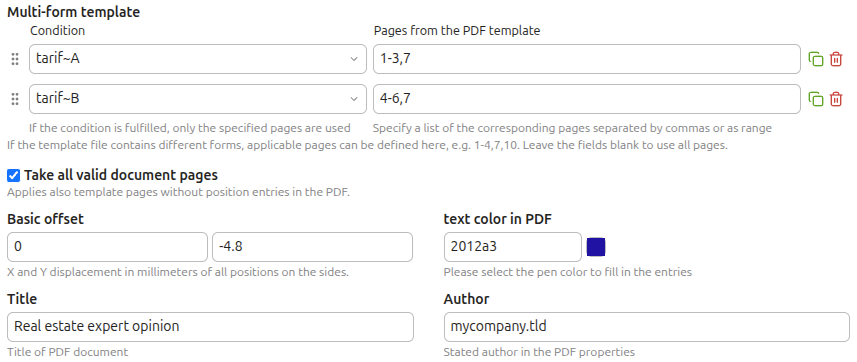
In the example, there is a radio button element where you can select tariff A or B. Depending on the selection in the form, only the specified pages are output, so pages 1, 2, 3 and 7 are output for tariff A, and pages 4, 5, 6 and 7 for tariff B (the page numbers always refer to the template). Further conditions can also be used to control attachments.
If you leave the Multiple templates element completely empty, the complete template PDF will be used.
Use Take all valid document pages to control whether all template pages should be transferred to the PDF or only the pages on which valid items are entered. This allows you to create optional pages using the template. If a single blank page (e.g. terms and conditions) is nevertheless included, enter a position that prints a blank. For multiple templates, "All pages" only refers to the pages of the template released via the conditions.
When you measure the form and enter the positions, there are often differences to the paper margin. This shift then applies to all items in the PDF. To avoid having to adjust every position, you can simply equalise the basic offset by making an entry in the form properties.
For the display, you can enter the text colour in the PDF and the title and author for the file properties.
The text colour can be overwritten individually in the individual items, e.g. to set off a heading in colour.
It is possible to protect the generated PDF with a password. There are 2 ways:
|
|
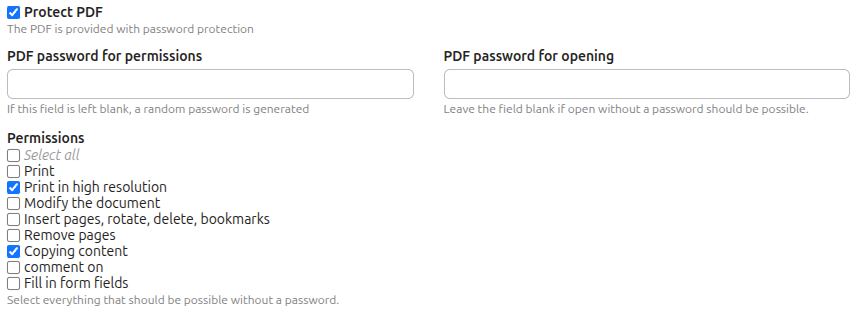
a) Restriction of authorisations, enter all released authorisations here. If the PDF password for authorisations is left blank, a random password is generated. The password is then unknown.
b) Password protection when opening the document You can enter a password here to prevent unauthorised opening of the PDF. For security reasons, send the password in a separate email or via SMS or a suitable messenger.
Note: The PDF protection is not completely secure. With appropriate programs, the password can be bypassed!
Use your own fonts:
|
|
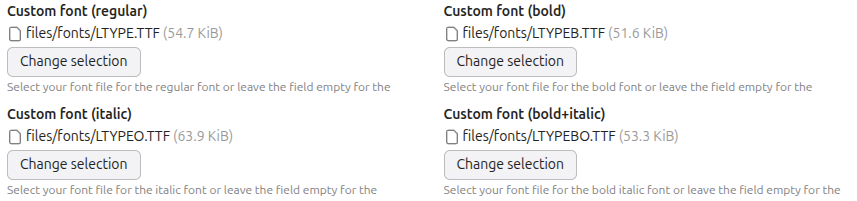
TTF or OTF fonts can be assigned for each of the 4 possible font styles (regular, bold, italic, bold+italic) in the PDF positions. Where no font is selected, the default font remains.
It is also possible to assign different fonts to font styles. For example, a decorative font for special effects can be assigned to the bold+italic font style to highlight special entries.
No comments to display
No comments to display