
5. Definition of positions in the PDF
There is an additional icon (a PDF symbol) in the overview of the created forms. The positions of the entries in the template PDF are defined in the following table. Any number of items can be created.
 |
It is possible to generate a completed Test PDF directly in the backend. This allows you to quickly check whether all items are filled in correctly in the form. All published items are output, and the field name is displayed for form fields.
As no input data is available, the conditions are not checked, all fields and all pages are transferred to the test PDF.
 |
There are different types of positions:
- Text position - Output of form content, texts and insert tags
- Picture position - Output of image data
- Barcode - Output of a barcode from form content, text, InsertTags
Creating the individual items:
a) Text positions
 |
The information to be entered is set in the first section. The following options are available:
- a field name from the form
- a fixed text in quotation marks
- InsertTags must also be set in quotation marks
In the example, these are the form fields lastname and firstname and a fixed text with a comma. These individual definition lines are strung together with spaces (no space before a comma). If the automatic space character is annoying in rare situations, you can switch it off.
A condition can be programmed for the output in the 2nd column. If the condition is empty, the position is always output. In the example, the comma depends on whether the firstname field in the form has been filled in (used). The comma is therefore only output if the firstname has been filled in.
The condition can also be inverted:
used = field filled in / checkbox or radio button selected
empty = field is empty / checkbox or radio button not selected
The fixed texts can also contain insert tags:
 |
In this example, "Berlin, 2018-02-04" or only "2018-02-04" entered in the PDF, depending on whether city is specified or not.
To cross check boxes, we use an "X" with the checkbox value in the condition:
 |
In the Remarks and notes line, you can save notes on the position, for example for checkboxes or radio buttons where only an "X" is displayed, the option can be described here for the backend view.
In the lower part of the backend form it comes to the position in the PDF where the selected information is entered and the font attributes.
 |
Die Position besteht aus der PDF-Seite (bezieht sich auf die Seite in der Vorlage), dem horizontalen Abstand vom linken Seitenrand und dem vertikalen Abstand vom oberen Rand. Optionell kann auch ein rechter Rand eingegeben werden. Das ist oft sinnvoll bei Formularfeldern vom Typ Textarea, wo der Zeilentext umbrechen soll. Abhängig von der verwendeten Schriftart gibt es möglicherweise eine konstante Verschiebung durch Über- und Unterlängen im Font.
Eine gute Möglichkeit, die Positionen zu ermitteln, ist das Ausmessen der PDF-Seite in Programmen, wie Photoshop. In einem Positionstest kann schnell der Versatz ermittelt und in den anderen Positionen eingerechnet werden.
Hinweis: Die Positionen beziehen sich immer auf den Grund-Offset in den Formulareigenschaften.
Beginnt eine Positionsangabe mit + oder -, dann wird die Position relativ zu vorigen Position platziert. Beispielsweise kann man durch Y-Position „+5“ die Ausgabe auf 5 mm unter der letzten Ausgabeposition setzen.
b) Bildposition
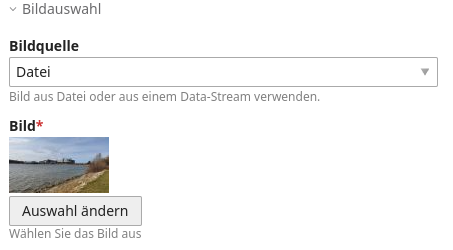
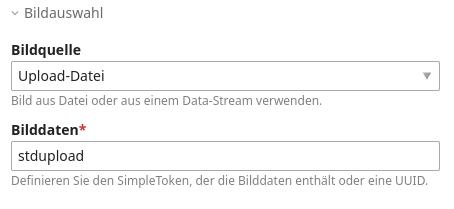
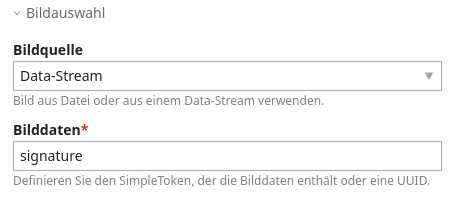
Für die Einbindung von Bildern in das PDF gibt es 4 Möglichkeiten:
- Ein Bild aus der Dateiverwaltung auswählen
- Ein Bild aus dem Upload, also aus dem Formular übernehmen
- Ein Bild, was als DataStream in den Formulardaten enthalten ist (z.B. aus der Unterschriften-Erweiterung do-while/contao-signature-formfield-bundle)
- Ein Bild über die UUID der Datei einbinden
 |
Bei allen Bildpositionen wird die Seite, die Position und die Größe angegeben. Das Bild wird immer auf die angegebenen Maße zurecht geschnitten (MODE_CROP = Exaktes Format). Zusätzlich ist es möglich, eine Bedingung für die Einbindung anzugeben, das Bild wird dann nur eingebunden, wenn die Bedingung erfüllt ist. So lassen sich beispielsweise Bilder passend zu einem Auswahlfeld einbinden.
 |
 |
 |
 |
c) Barcode
Binden Sie einen Barcode aus Ihren Daten in das PDF ein:
 |
Folgende Barcode-Typen zur Auswahl:
(typenabhängig ist teilweise der Zeichensatz eingeschränkt)
2D-Barcodes
- QR-Code - einfache Fehlerkorrektur
- QR-Code - mittlere Fehlerkorrektur
- QR-Code - bessere Fehlerkorrektur
- QR-Code - beste Fehlerkorrektur
- PDF417 (ISO/IEC 15438:2006)
- Datamatrix (ISO/IEC 16022:2006)
1D-Barcodes
- Code 39 - ANSI MH10.8M-1983 - USD-3 - 3 of 9
- Code 39 + Checksumme
- Code 39 Extended
- Code 39 Extended + Checksumme
- Code 93 – USS-93
- Standard 2 of 5
- Standard 2 of 5 + Checksumme
- Interleaved 2 of 5
- Interleaved 2 of 5 + Checksumme
- Code 128 AUTO
- Code 128 A
- Code 128 B
- Code 128 C
- EAN 8
- EAN 13
- UPC-A
- UPC-E
- 5-Ziffern UPC-Based Extension
- 2-Ziffern UPC-Based Extension
- MSI
- MSI + Checksumme (module 11)
- Codabar
- Code 11
- Pharmacode
- Pharmacode TWO-TRACKS
- IMB - Intelligent Mail Barcode - Onecode – USPS-B-3200
- Postnet
- Planet
- RMS4CC (Royal Mail 4-state Customer Code) - CBC (Customer Bar Code)
- KIX (Klant index - Customer index)
Wie bei Textpositionen, können hier verschiedene Formulardaten, Texte und InsertTags verknüpft werden. Der resultierende Text wird in dem Barcode kodiert. Der Barcode wird normalerweise in der Standardfarbe ausgegeben, möchten Sie eine andere Farbe verwenden, geben Sie diese im Feld Textfarbe überschreiben an.
 |
Darunter geben Sie die Position im PDF und die Größe des Barcodes an. Zusätzlich ist es möglich, eine Bedingung für die Einbindung anzugeben, der Barcode wird nur eingebunden, wenn die Bedingung erfüllt ist.