# Extension contao-pdfforms-bundle (EN)
This Contao extension from Softleister extends the form generator with the option of filling out, saving and sending a PDF template with the data entered in the online form.
The **contao-pdfforms-bundle** extension is installed as a limited demo. The demo version prints a demo note in the PDF with full functionality and is limited to 2 output pages. The full functionality is activated with a licence key. The licence allows you to use the extension in the domain specified at the time of purchase. Use in other domains requires an additional licence.
Contao versions 5.3 and 5.7 require different releases of the extension:
- Contao 5.3 ... 5.6: contao-pdfforms-bundle **^2.3**
- Contao 5.7 ... : contao-pdfforms-bundle **^2.4**
\_\_\_\_\_\_
Status: Version 2.4.1 - 2026-03-14
Softleister, Dipl. Ing. Hagen Klemp, , [www.softleister.de](https://www.softleister.de)
**Contents:**
# 1. System Requirements
The extension in version **2.4** is approved for **Contao 5 from version 5.7** onwards:
For **Contao 5 with versions 5.3 ... 5.6**, please use version **2.3**.
The Composer or the Contao Manager is required for the installation.
# 2. Interaction with other extensions
With the following extensions further features are available:
##### **notification\_center** (terminal42/notification\_center)
contao-pdfforms-bundle sends via the normal "Contao Form Generator Submissions". The generated file can be attached to the mail using a token.
#####
**mp\_forms** (terminal42/contao-mp\_forms)
Starting with pdf\_forms version 2.1, **multi-page forms** structured with mp\_forms are also supported.
**Note:** mp\_forms is not yet available for Contao 5.7, so it could not be tested.
##### **fineuploader** (terminal42/contao-fineuploader)
Starting with pdf\_forms version 2.2, uploads can also be used via the Fine Uploader. The form fields are then named fileuploader\_0...x (where fineuploader is the assigned field name).
**Note:** mp\_forms is not yet available for Contao 5.7, so it could not be tested.
# 3. Installation
Simply install the extension with the **Contao Manager**, search for
**PDF form output** oder **do-while/contao-pdfforms-bundle**
or on the command line with the **Composer**:
```
composer require do-while/contao-pdfforms-bundle
```
For Contao 5.3 ... 5.6, you must set the version to ^2.3 in the Contao Manager!
You can first install the extension as a demo and check its suitability for your project. The demo has all the features, but is limited to 2 output pages. Before you go online, you will need your licence code:
[www.softleister.de/kontakt/anfrage.html?erw=pdfforms](https://www.softleister.de/kontakt/anfrage.html?erw=pdfforms)
Enter the licence code in the .env.local file in the base directory of the Contao installation. This is described in more detail in your licence document, which you will receive after purchasing the licence.
# 4. Advanced form properties
After the installation, more functions are available in the properties of the form generator:
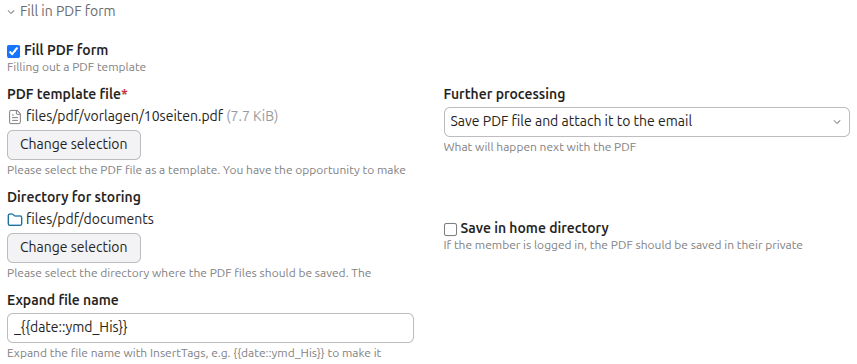
In the section *Fill PDF form*, you can turn on the creation of a PDF file.
| [](https://books.softleister.de/uploads/images/gallery/2026-02/3gFZUZFVTZSThbZW-image.png)
|
You provide a **PDF template file** containing the unfilled form. Please note that the PDF specification 1.4 (Acrobat 5.x) must be available; you may have to save the template in an older PDF format.
The PDF template is filled in and saved as a copy with the online entries. The page sizes of the template pages are adopted.
You can specify under **Further processing** that the generated file should be included as an e-mail attachment in the form e-mail.
To save the PDF files, specify a **directory for saving**. The generated, completed PDFs are saved here. You can use the "Save in home directory" checkbox to ensure that the PDF is saved there for logged-in users who have their own home directory. If there is no home directory or the sender is not logged in, the normal specified directory is used for saving.
The file name consists of the form name and a timestamp; you can customise the structure of the file name in the **Expand file name** field. The default entry appends the current date and time. The use of InsertTags is possible.
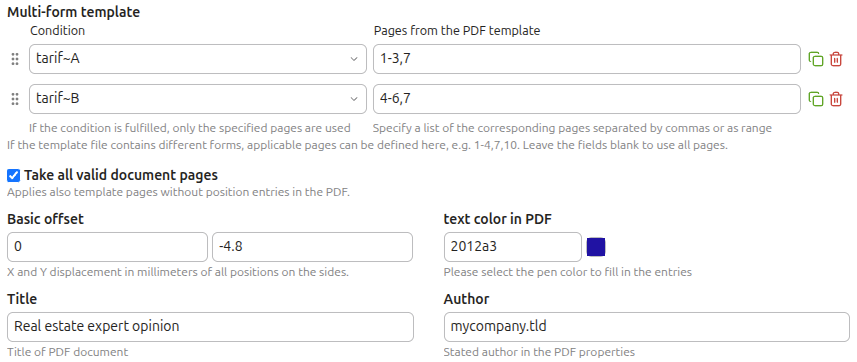
It is possible to manage **multi-form templates** in one template PDF. For this purpose, all possible output pages are listed one after the other in the template PDF. By specifying the controlling fields as a condition, the output can be restricted to certain pages.
| [](https://books.softleister.de/uploads/images/gallery/2026-02/nkjeYUSnTQenxI43-image.png)
|
In the example, there is a radio button element where you can select tariff A or B. Depending on the selection in the form, only the specified pages are output, so pages 1, 2, 3 and 7 are output for tariff A, and pages 4, 5, 6 and 7 for tariff B (the page numbers always refer to the template). Further conditions can also be used to control attachments.
If you leave the Multiple templates element completely empty, the complete template PDF will be used.
Use **Take all valid document pages** to control whether all template pages should be transferred to the PDF or only the pages on which valid items are entered. This allows you to create optional pages using the template. If a single blank page (e.g. terms and conditions) is nevertheless included, enter a position that prints a blank. For multiple templates, "All pages" only refers to the pages of the template released via the conditions.
When you measure the form and enter the positions, there are often differences to the paper margin. This shift then applies to all items in the PDF. To avoid having to adjust every position, you can simply equalise the **basic offset** by making an entry in the form properties.
For the display, you can enter the **text colour in the PDF** and the **title** and **author** for the file properties.
The text colour can be overwritten individually in the individual items, e.g. to set off a heading in colour.
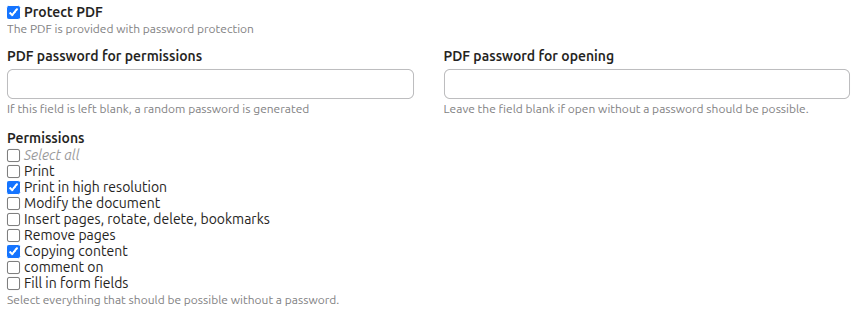
It is possible to protect the generated PDF with a password. There are 2 ways:
| [](https://books.softleister.de/uploads/images/gallery/2026-02/964xtoiPlMvs0Xes-image.png)
|
a) Restriction of authorisations, enter all released authorisations here. If the PDF password for authorisations is left blank, a random password is generated. The password is then unknown.
b) Password protection when opening the document You can enter a password here to prevent unauthorised opening of the PDF. For security reasons, send the password in a separate email or via SMS or a suitable messenger.
Note: The PDF protection is not completely secure. With appropriate programs, the password can be bypassed!
##### Use your own fonts:
| [](https://books.softleister.de/uploads/images/gallery/2026-02/4MBSVA0eF5l5I9lP-image.png)
|
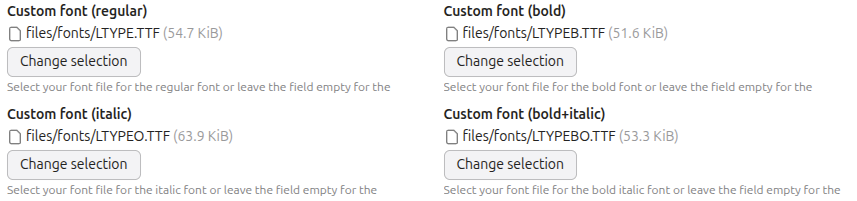
TTF or OTF fonts can be assigned for each of the 4 possible font styles (regular, bold, italic, bold+italic) in the PDF positions. Where no font is selected, the default font remains.
It is also possible to assign different fonts to font styles. For example, a decorative font for special effects can be assigned to the bold+italic font style to highlight special entries.
# 5. Definition of positions in the PDF
There is an additional icon (a PDF symbol) in the overview of the created forms. The positions of the entries in the template PDF are defined in the following table. Any number of items can be created.
| [](https://books.softleister.de/uploads/images/gallery/2026-02/mO5k9z4e5RTQ9T6S-image.png)
|
It is possible to generate a completed **Test PDF** directly in the backend. This allows you to quickly check whether all items are filled in correctly in the form. All published items are output, and the field name is displayed for form fields.
Since no input data is available, the conditions are not checked, meaning that all fields and all pages are transferred to the test PDF.
| [](https://books.softleister.de/uploads/images/gallery/2026-02/1PYLZqW5tF22k8hC-image.png)
|
There are different types of positions:
- **Text position** - Output of form content, texts and insert tags
- **Picture position** - Output of image data
- **Barcode** - Output of a barcode from form content, text, InsertTags
#### Creating the individual items:
##### a) Text positions
| [](https://books.softleister.de/uploads/images/gallery/2026-02/piWR2pQTuMF3uUpu-image.png)
|
The information to be entered is set in the first section. The following options are available:
- a field name from the form
- a fixed text in quotation marks
- InsertTags must also be enclosed in quotation marks, as they are to be processed as text
In the example, these are the form fields lastname and firstname and a fixed text with a comma. These individual definition lines are strung together with spaces (no space before a comma). If the **automatic space** character is annoying in rare situations, you can switch it off.
A condition can be programmed for the output in the 2nd column. If the condition is empty, the position is always output. In the example, the comma depends on whether the **firstname** field in the form has been filled in (used). The comma is therefore only output if the firstname has been filled in.
The condition can also be inverted:
used = field filled in / checkbox or radio button selected
empty = field is empty / checkbox or radio button not selected
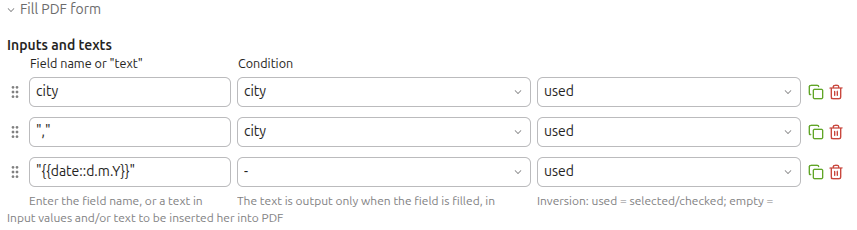
The fixed texts can also contain insert tags:
| [](https://books.softleister.de/uploads/images/gallery/2026-02/PI2bVr522NNNzarQ-image.png)
|
In this example, "Berlin, 2018-02-04" or only "2018-02-04" entered in the PDF, depending on whether city is specified or not.
To cross check boxes, we use an "X" with the checkbox value in the condition:
| [](https://books.softleister.de/uploads/images/gallery/2026-02/RkElMYDOl1b6Xo2l-image.png)
|
In the **Remarks and notes** line, you can save notes on the position, for example for checkboxes or radio buttons where only an "X" is displayed, the option can be described here for the backend view.
If you want to display all selected values as text in a comma-separated list, simply enter the field name.
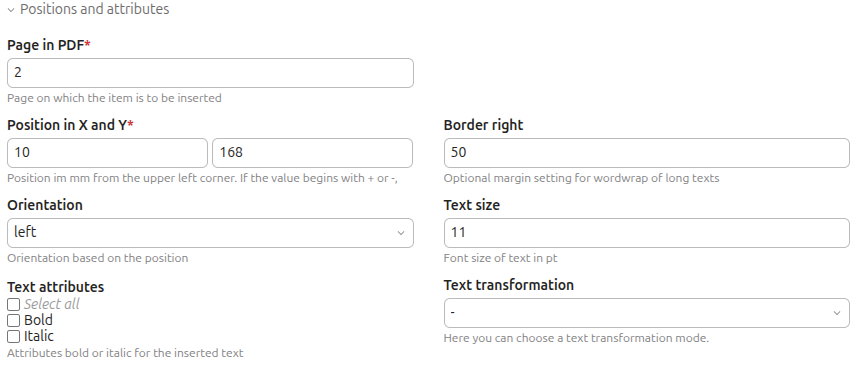
In the lower part of the backend form it comes to the position in the PDF where the selected information is entered and the font attributes.
| [](https://books.softleister.de/uploads/images/gallery/2026-02/fszSP6qodxagVaI6-image.png)
|
The **position** consists of the PDF page (refers to the page in the template), the horizontal distance from the left margin and the vertical distance from the top margin. Optionally, a right margin can also be entered. This is often useful for form fields of the textarea type, where the line text should wrap. Depending on the font used, there may be a constant shift due to over- and descenders in the font.
A good way to determine the positions is to measure the PDF page in programs such as Photoshop. The offset can be quickly determined in a position test and included in the other positions.
*Note: The positions always refer to the basic offset in the form properties*
If a position specification begins with + or -, then the position is placed **relative** to the previous position. For example, the Y position "+5" can be used to set the output to 5 mm below the last output position.
##### b) Picture position
There are 4 options for integrating images into the PDF:
- Select an image from the file manager
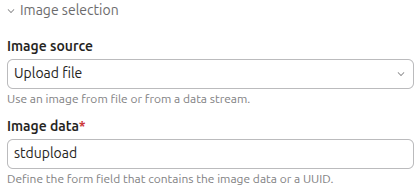
- Take an image from the upload, i.e. from the form
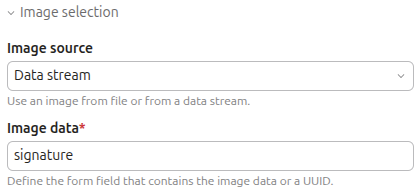
- An image that is contained in the form data as a DataStream (e.g. from the signature extension [do-while/contao-signature-formfield-bundle](https://packagist.org/packages/do-while/contao-signature-formfield-bundle))
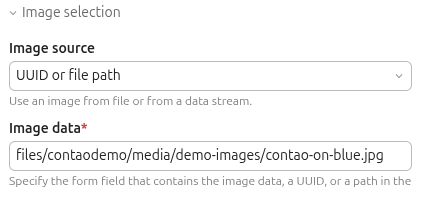
- Include an image via the UUID of the file (e.g., 735e095f-a30e-11ee-9009d02fd8b3)
- Include an image using the file path (e.g., files/contaodemo/media/demo-images/contao-on-blue.jpg)
| [](https://books.softleister.de/uploads/images/gallery/2026-02/TDgtGOVh9iWBf3Zb-image.png)
|
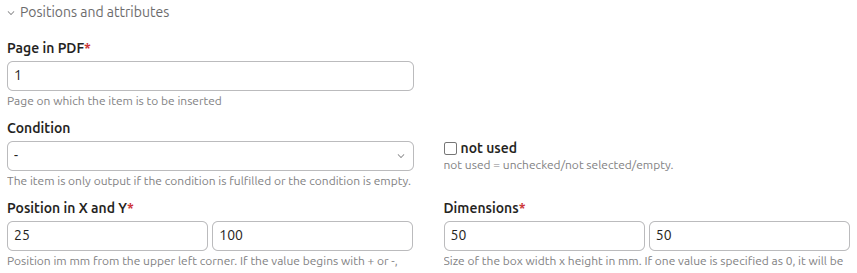
The page, position and size are specified for all image positions. The image is always cropped to the specified dimensions (MODE\_CROP = Exact format). It is also possible to specify a condition for inclusion, the image is then only included if the condition is met. For example, images can be integrated to match a selection field.
| [](https://books.softleister.de/uploads/images/gallery/2026-02/r6eYjl3TZ5IE8ucB-image.png)
| [](https://books.softleister.de/uploads/images/gallery/2026-02/uWSj7vuA4Gi6eNQA-image.png)
|
| [](https://books.softleister.de/uploads/images/gallery/2026-02/JoTMqZCLMSCse4m1-image.png)
| [](https://books.softleister.de/uploads/images/gallery/2026-03/gdue8v1jOZwncOar-image.png)
|
**Contao 5.7:** It is now possible to upload multiple files using the file upload feature. To address a specific file, \_0, \_1, etc. is appended to the field name. Example: if the field name is *stdupload* and 3 files are uploaded, the files can be accessed under the field names *stdupload\_0*, *stdupload\_1*, and *stdupload\_2*.
##### c) Barcode
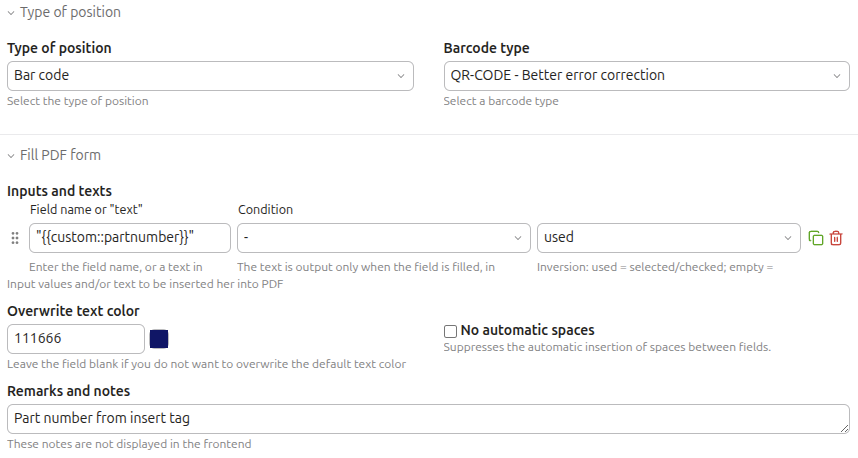
Include a barcode from your data in the PDF:
| [](https://books.softleister.de/uploads/images/gallery/2026-02/fT6Znj7L1jm9hJVB-image.png)
|
The following barcode types are available:
(depending on the type, the character set is partially restricted)
**2D bar codes**
- QR-Code - Low error correction
- QR-Code - Medium error correction
- QR-Code - Better error correction
- QR-Code - Best error correction
- PDF417 (ISO/IEC 15438:2006)
- Datamatrix (ISO/IEC 16022:2006)
**1D bar codes**
- Code 39 - ANSI MH10.8M-1983 - USD-3 - 3 of 9
- Code 39 + Checksum
- Code 39 Extended
- Code 39 Extended + Checksum
- Code 93 – USS-93
- Standard 2 of 5
- Standard 2 of 5 + Checksum
- Interleaved 2 of 5
- Interleaved 2 of 5 + Checksum
- Code 128 AUTO
- Code 128 A
- Code 128 B
- Code 128 C
- EAN 8
- EAN 13
- UPC-A
- UPC-E
- 5-Ziffern UPC-Based Extension
- 2-Ziffern UPC-Based Extension
- MSI
- MSI + Checksum (module 11)
- Codabar
- Code 11
- Pharmacode
- Pharmacode TWO-TRACKS
- IMB - Intelligent Mail Barcode - Onecode – USPS-B-3200
- Postnet
- Planet
- RMS4CC (Royal Mail 4-state Customer Code) - CBC (Customer Bar Code)
- KIX (Klant index - Customer index)
As with text items, various form data, texts and insert tags can be linked here. The resulting text is encoded in the barcode. The barcode is normally output in the standard colour; if you want to use a different color, enter it in the Overwrite **text color** field.
| [](https://books.softleister.de/uploads/images/gallery/2026-02/rpUVkRfsAmLhPBvQ-image.png)
|
Below this, enter the position in the PDF and the size of the barcode. It is also possible to specify a condition for inclusion; the barcode is only included if the condition is met.
# 6. Setting up the email attachment
In the form properties, there is an option in the further processing selection called “Save PDF file and attach it to the email.” If this further processing option is selected, the generated file will be sent as an attachment with the email.
When using the **Notification Center**, there is a SimpleToken for the „Attachments via tokens" field in the notification. Enter the token **\##form\_pdfattachment##** there to attach the generated PDF file.
# 7. Directory protection, protected PDF
To prevent direct downloads of PDF files, which often contain personal data, the template and storage directory can be protected in the file manager. The files can still be used as email attachments without restriction.
In addition, the created PDF can be protected with a password. The protection can prevent opening or restrict authorisations.
Note: The PDF protection is not completely secure. With appropriate programs, the password can be bypassed!
# 8. Insert tags
The extension replaces insert tags in the position definitions, so that, if necessary, dynamic data or the data of the registered member may be used.
The extension also provides its own insert tags available:
`{{pdf_forms::pdfdocument}}`
can be used to include the file link of the generated document in a download link. If you are not using the Contao download content element, the file must be publicly accessible; in the case of a protected PDF directory, the download must take place via the Contao content element.
`{{pdf_forms::pdfdocument::name}}`
can be used to insert only the file name of the generated document in the reply page. This is also the file name of the PDF attachment to the email.
`{{pdf_forms::password_random}}`
generates a random password, e.g. as the permissions password for the PDF.
`{{pdf_forms::form_*}}`
With this InsertTag, it is possible to add transferred content from a form field to the PDF file name in the form properties. For example, a process number from a hidden table field.
Replace the \* with the name of the form field.
# 9. For programmers and developers
This section is aimed at programmers who want to influence this extension in their own modules.
#### Internal field variables for PDF
New in version 2.3 are internal field variables that can be entered via the pdf\_formsBeforePdf hook. These variables can then be used in exactly the same way as form fields from the submitted form. To be able to use these variables in the conditions, an entry must be made in config/config.yaml so that these fields are added to the conditions SELECT:
```yaml
# config/config.yaml
softleister_pdfforms:
add_condition_options: [foo, bar]
```
In the example, the field variables **foo** and **bar** are made available for conditions. After entering them in the config.yaml file, the Symfony cache must be cleared/refreshed.
The variables and their values are then created in the pdf\_formsBeforePdf hook (see below).
#### Hooks
In the program flow, you can link in at various points using a HOOK registration. The extension **contao-pdfforms-bundle** calls the registered hooks, if any are registered.
The following hooks are available:
**pdf\_formsBeforePdf**
Is called after data preparation **before** the PDF is created. Here, further entries can be added to the $arrPDF array or existing entries can be modified. The hook must return the $arrPDF as the return value.
Example:
```php
// src/EventListener/Pdf_formsBeforePdfListener.php
'text', 'value'=>1, 'orig'=>'foo', 'options'=>''];
$arrPDF['arrFields']['bar'] = ['type'=>'text', 'value'=>'', 'orig'=>'bar', 'options'=>''];
// Example: The text output of the upload field with the field name
// ‘singleupload’ should enter the file name and 1 last
// directory before it in the PDF. The default is only the
// file name without the directory.
//
// Option: basename:Number of directories before
if( isset( $arrPDF['arrFields']['singleupload'] ) ) {
$arrPDF['arrFields']['singleupload']['options'] = 'basename:1';
}
return $arrPDF;
}
}
```
**pdf\_formsPositions**
Is called up for **each item** in the form during PDF creation. It is still possible to manipulate data here. The page number cannot be changed, otherwise the output will not work correctly. The passed and possibly modified array $arrItem is expected as the return value.
Example:
```php
// src/EventListener/Pdf_formsPositionsListener.php